 Motionflare
Обновление 04: интерфейс 2.0, больше моделей и визуальное редактирование

Joey
Основатель / CEO
16 июля 2026 г.
Чтение: 2 мин.
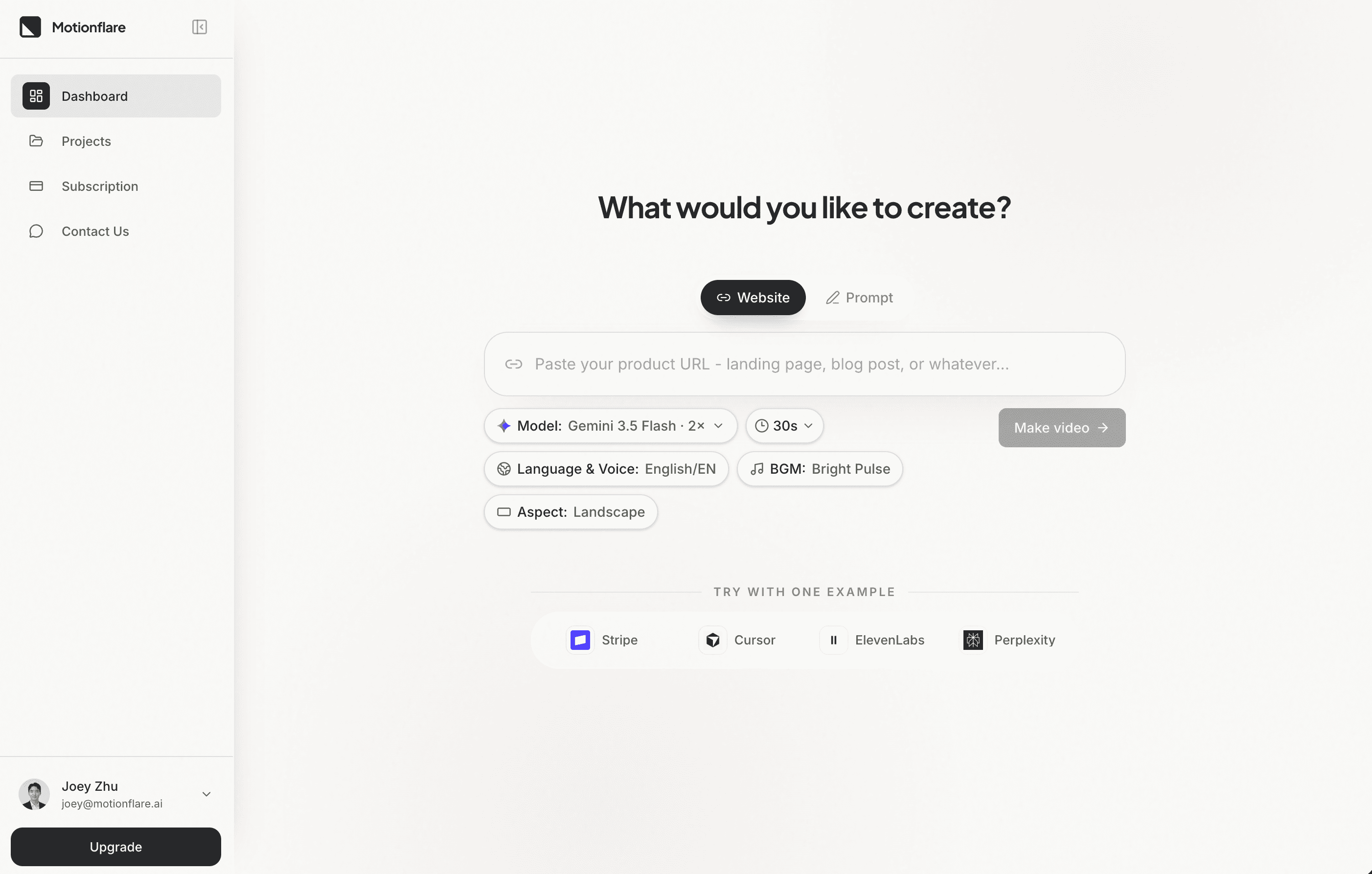
У Motionflare новый вид, а за ним стоит заметно больше контроля.
Этот релиз обновляет работу от первого промпта до финальной правки. Можно выбирать из большего числа моделей генерации, менять текст на экране без перегенерации сцены и менять голос, музыку или брендинг уже после того, как ролик готов.
1. Новый интерфейс Motionflare
Motionflare переработан вокруг более чистого и сфокусированного процесса создания.
Новая главная страница выносит самый короткий путь на первый план: вставьте сайт или опишите, что хотите сделать, и дайте Motionflare превратить это в маркетинговый ролик в фирменном стиле.

Рабочая область теперь собирает все важные решения в один упорядоченный процесс. Модель, длительность, язык, голос, фоновая музыка и соотношение сторон выбираются до начала генерации. Пользователи Pro и Max могут ещё выбрать между роликами на 30 и 60 секунд.
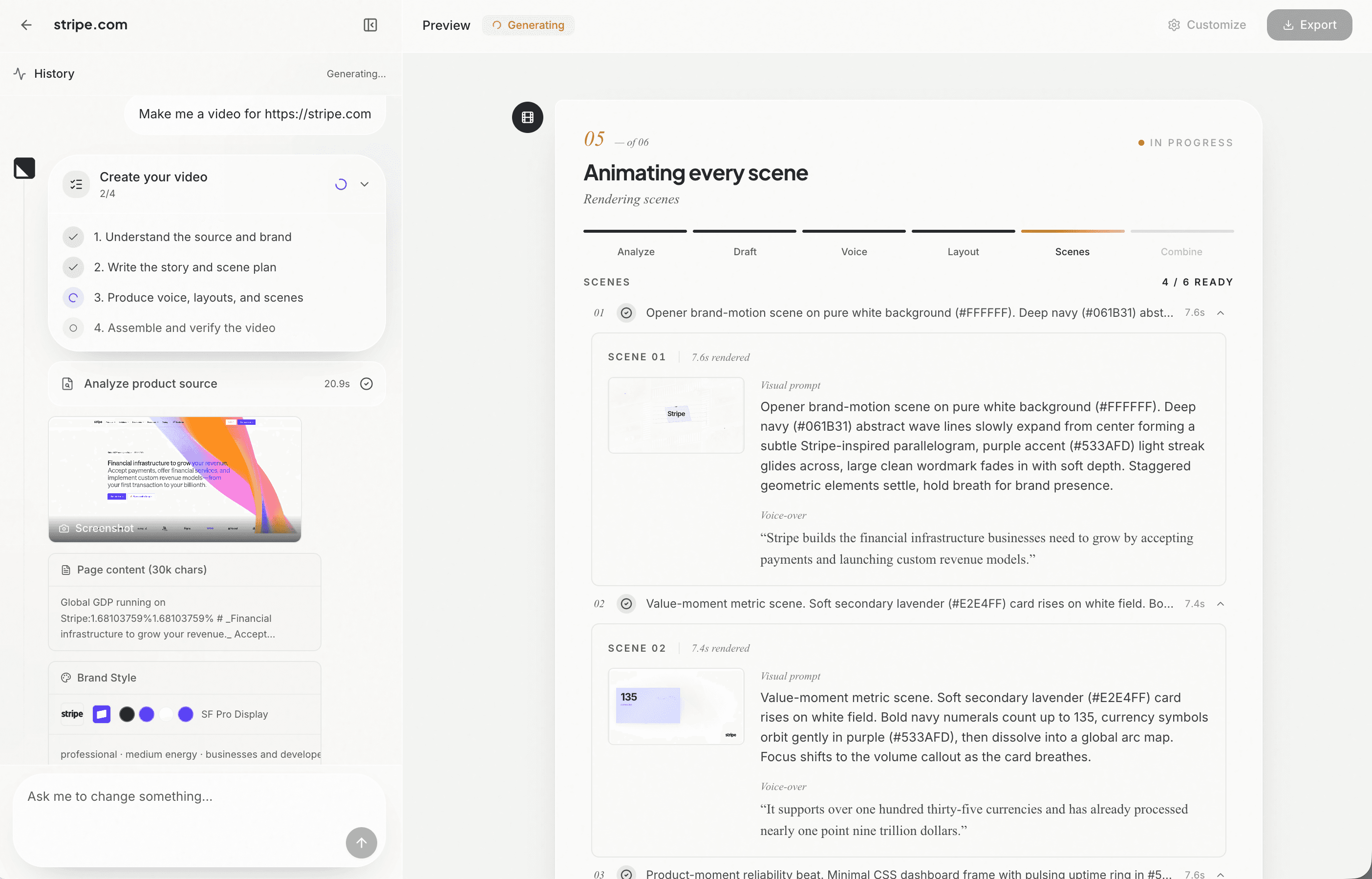
Обновилась и рабочая область проекта. Прогресс генерации, исходные материалы, детали сцен, предпросмотр, таймлайн и чат теперь стоят рядом в более понятной раскладке, поэтому легче видеть, что делает Motionflare, и сразу переходить к правкам, когда ролик готов.
2. Больше моделей, больше способов создавать
Теперь можно выбрать модель генерации, которая лучше подходит конкретному проекту.
Сейчас в Motionflare пять моделей в трёх уровнях:
- MiniMax M3: самый экономичный вариант
- Grok 4.5: крепкий баланс скорости и качества
- Gemini 3.6 Flash: быстро и сбалансированно
- GPT-5.6 Terra: продвинутое качество и рассуждение
- GPT-5.6 Sol: максимальное качество для требовательных задач
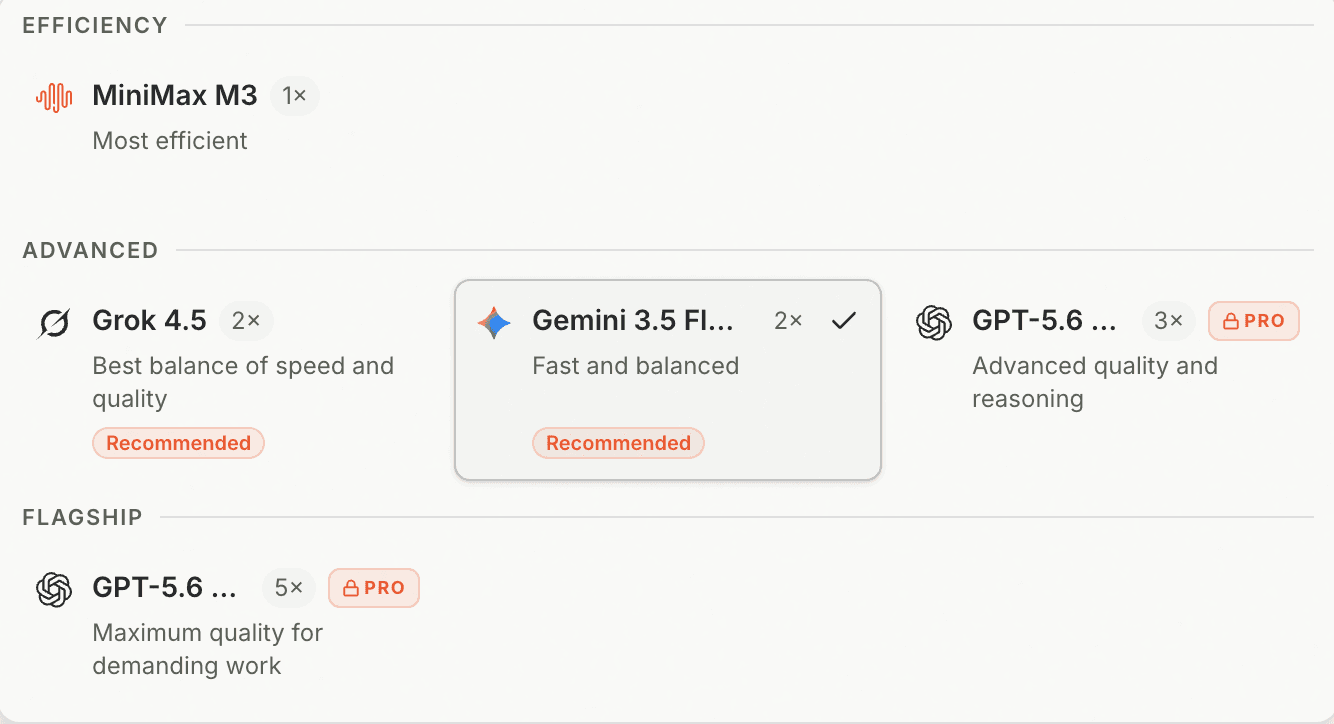
Селектор моделей показывает профиль качества и множитель кредитов ещё до старта. MiniMax, Grok и Gemini доступны всем, а Terra и Sol доступны на тарифах Pro и Max.
Ваш выбор закрепляется за проектом, поэтому первая генерация и последующие доработки остаются согласованными. Выбранная модель также видна в настройках проекта.
3. Правьте текст на экране визуально и бесплатно
Мелкие правки текста не должны требовать пересборки всей сцены.
Новый редактор сцен находит статичный текст, отрисованный внутри каждой сцены, и позволяет править его напрямую. Обновите заголовок, исправьте опечатку, замените ссылку или уберите строку, а затем сохраните все изменения разом.
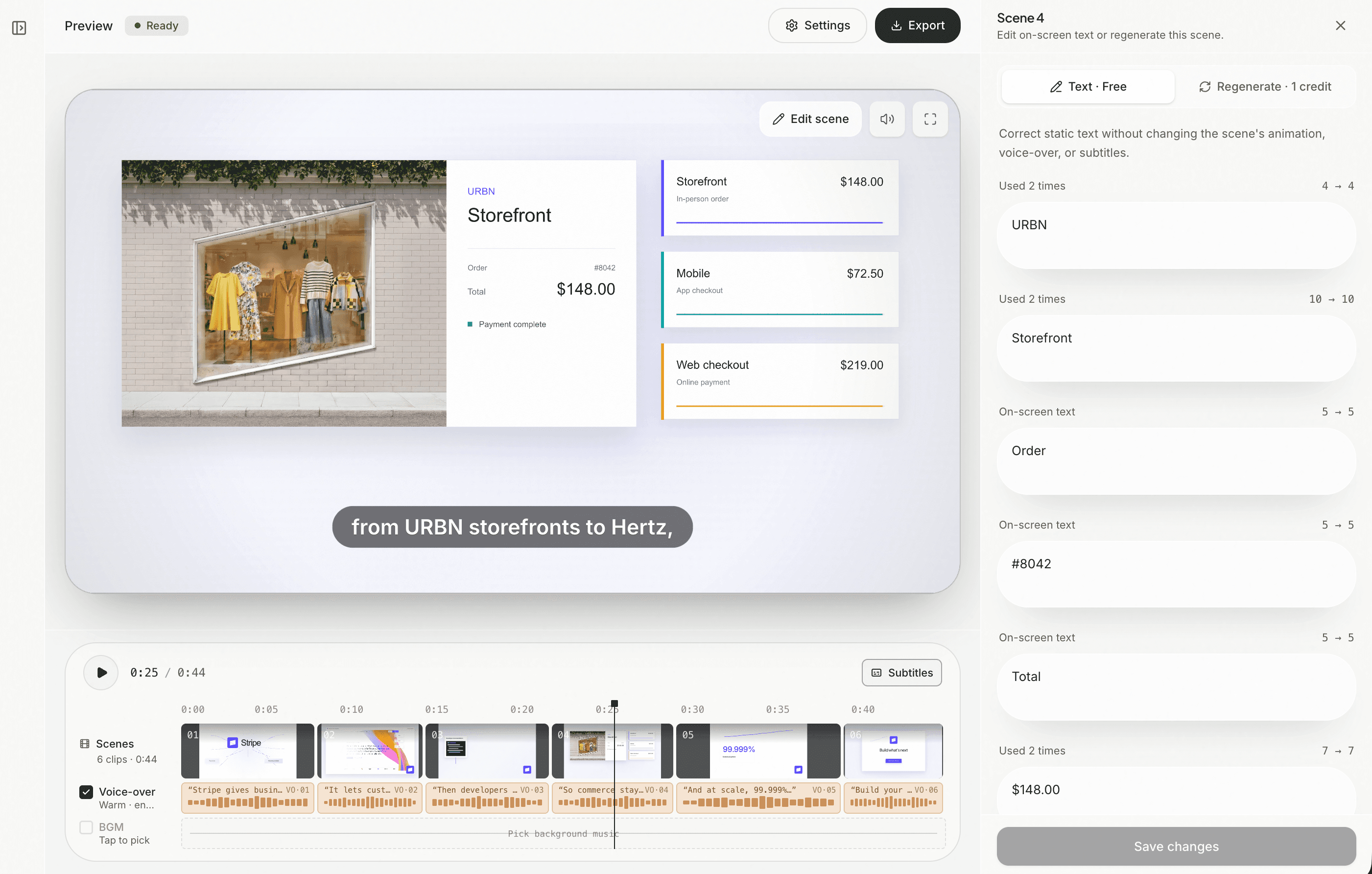
Визуальные правки текста бесплатны и сохраняют существующую анимацию, озвучку, субтитры, тайминги, переходы и раскладку. Если новый текст заметно длиннее, Motionflare предупредит, что это может повлиять на композицию, но не заблокирует правку.
Для более крупных творческих изменений в той же панели есть отдельная вкладка Перегенерировать. Редактор ещё и следует за активной сценой, пока вы двигаетесь по таймлайну, и защищает несохранённые изменения перед переключением.
4. Больше контроля после генерации
Настройки проекта теперь собирают управление брендом, музыкой и голосом в одном месте.
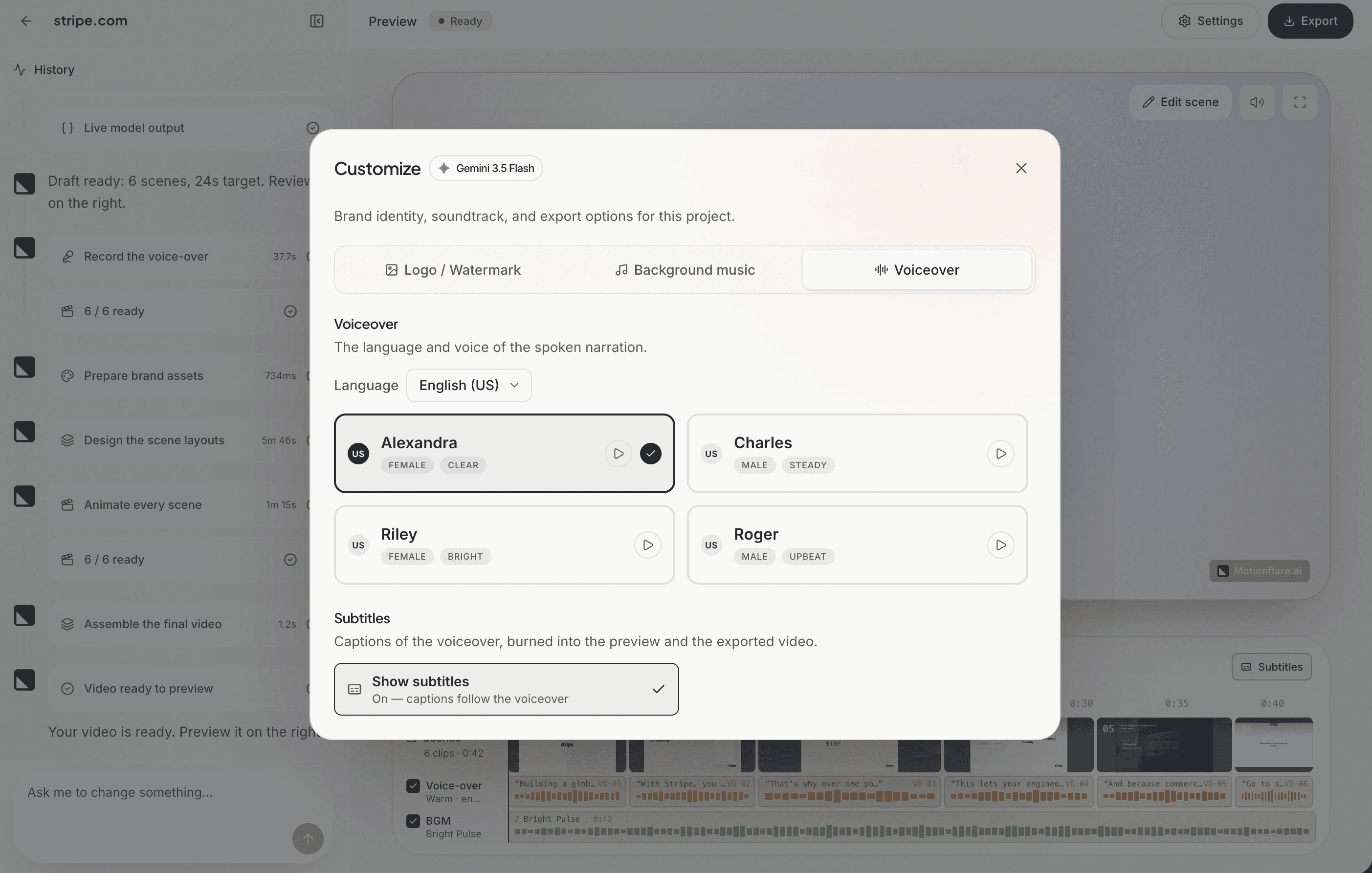
Можно заменить логотип проекта, управлять водяным знаком, сменить фоновую музыку и её громкость, выбрать другой голос, поменять язык озвучки и настроить субтитры, не начиная заново.
Смена голоса теперь пересобирает только звуковые дорожки и сохраняет готовую картинку сцен. То есть попробовать другую подачу можно, не прося Motionflare заново проектировать ролик.
Всё из этого обновления уже работает.
Создайте следующий ролик на Motionflare.ai и расскажите, что хотите увидеть в обновлении 05.